
iPhone Duo app development is the process of adapting an iOS app for Apple’s foldable iPhone, including its 5.4-inch outer display, 7.6-inch inner display, Split View behavior, asymmetric safe areas and posture changes. Existing apps can run on iPhone Duo, but apps that rely on fixed screen sizes, orientation checks or UIScreen.main need a migration pass before they feel native.
The short version: update to Xcode 27.1 and the iOS 27.1 SDK, test every critical journey in Device Hub, replace device-shape assumptions with size classes, respect safe areas independently and use standard navigation containers wherever possible.

This Comms guide rewrites the common iPhone Duo preparation advice into an engineering plan for product teams, CTOs and iOS leads. It focuses on what to inspect, what to change and how to avoid turning a device update into an uncontrolled rebuild.
What is an iPhone Duo app?
An iPhone Duo app is any iOS app that runs on Apple’s foldable iPhone. The same product may appear on the outer cover display, the opened inner display, or in a narrower Split View pane beside another app.
That does not mean every app needs a full redesign. It means every important flow needs to work when the available space changes.
The biggest shift is mental: an iPhone app is no longer guaranteed to own one static rectangle. It needs to respond to current scene geometry.
iPhone Duo app vs standard iPhone app
| Area | Standard iPhone app | iPhone Duo-ready app |
|---|---|---|
| Display model | One main display | Outer display, inner display and split layouts |
| Layout signal | Device idiom or orientation | Horizontal and vertical size classes |
| Screen access | UIScreen.main often appears to work |
Scene-aware screen and trait access |
| Navigation | Single-column flows dominate | Split views, sidebars and adaptive navigation |
| Safe areas | Often symmetric | Can be asymmetric and posture-dependent |
| Custom controls | Fixed edges and frames | Reserved regions and adaptive placement |
| QA scope | A few phone sizes | Displays, postures, Split View and state transitions |
This is why a simple “does it launch?” test is not enough. The app may technically run while still wasting the larger screen, hiding controls or losing form state.
Why prepare now?
Apple’s Get ready for iPhone Duo developer hub points teams to Duo-specific videos, Human Interface Guidelines, labs, Q&As and Xcode 27.1 beta tooling. Apple’s Prepare your app for iPhone Duo session specifically covers the migration basics: latest SDK, Xcode testing, flexible layouts, size classes, screen assumptions, standard navigation, safe areas and reserved regions.
The business reason is just as clear. Foldable owners are likely to be early adopters, executives, creators and power users. If your app is central to sales, operations, healthcare, finance, media, travel, productivity or customer support, the first experience on a premium device matters.
1. Update to Xcode 27.1 and the iOS 27.1 SDK
Start with the toolchain. Building with a newer SDK affects how much of the iPhone Duo canvas the app can use and which layout APIs are available.
Apple’s developer session explains that apps can run without recompiling, but screen behavior improves when the app is built with newer SDKs. Treat iOS 27.1 as the target for serious launch readiness.
Migration actions:
- Install Xcode 27.1.
- Build the current app without feature changes.
- Record warnings, deprecations and compiler issues.
- Run the existing app in Duo simulator configurations.
- Decide which defects block release and which can wait.
Do not combine the SDK upgrade with broad product redesign on day one. First create a clean technical baseline.
2. Test every important pose in Device Hub
Device Hub is where teams can simulate iPhone Duo behavior before relying on physical hardware. Use it to open, close, rotate and fold the simulated device while watching real app flows.
Test at least:
- Launch on the outer display.
- Open to the inner display.
- Move through a partially folded posture if your flow is posture-sensitive.
- Enter Split View.
- Present the keyboard.
- Show modal sheets and alerts.
- Background and resume.
- Complete the app’s highest-value journey.
The evidence should be concrete: screenshots, recordings, build numbers and issue IDs. A sentence like “the app works on Duo” is too vague to guide engineering.
3. Replace interface-idiom assumptions with size classes
The outer display may behave like a familiar iPhone-sized surface, while the inner display provides a larger canvas. The right layout signal is available space, not the name of the device.
In SwiftUI, read size classes from the environment:
@Environment(\.horizontalSizeClass) private var horizontalSizeClass
@Environment(\.verticalSizeClass) private var verticalSizeClass
In UIKit, use trait collections:
let horizontal = traitCollection.horizontalSizeClass
let vertical = traitCollection.verticalSizeClass
Then decide layout by capability:
- Compact width: prioritize one task, one column, direct navigation.
- Regular width: consider sidebars, supporting panels or master-detail views.
- Reduced split pane: keep the active task reachable and avoid decorative secondary content.
Avoid branching on “Duo” as a device. The same adaptive logic will help across iPad, Mac resizing, iPhone Mirroring and future devices.
4. Stop treating UIScreen.main as the source of truth
On a single-display iPhone, UIScreen.main often became a convenient shortcut. On a dual-display, multi-scene device, it becomes ambiguous.
Avoid code like:
let screenScale = UIScreen.main.scale
let width = UIScreen.main.bounds.width
Prefer scene and trait context:
let screen = window?.windowScene?.screen
let screenScale = traitCollection.displayScale
Audit custom layout helpers, analytics utilities, image rendering code, camera overlays and old UIKit components. Screen assumptions often hide in utility code rather than the obvious view controllers.
5. Use standard navigation before custom navigation
Standard containers are more likely to adapt as Apple evolves Duo behavior. If your app uses NavigationSplitView, UISplitViewController, TabView or UITabBarController, review whether the system can do more of the adaptive work for you.
SwiftUI example:
TabView {
    DashboardView()
    MessagesView()
    SettingsView()
}
.defaultTabBarPlacement(.sidebar)
UIKit example:
tabBarController.sidebar.preferredPlacement = .sidebarCustom navigation can still be valid, especially in highly branded or workflow-heavy apps. But every custom bar, floating tab strip or manually positioned action cluster needs a Duo-specific QA pass.
6. Handle safe areas independently
iPhone Duo safe areas can be asymmetric. The left and right insets may differ, and interactive controls need to remain reachable as the system accounts for display edges, cameras, folds and multitasking boundaries.
Avoid mirrored assumptions:
let width = view.bounds.width - view.safeAreaInsets.left * 2Use the full inset set:
let width = view.bounds.inset(by: view.safeAreaInsets).widthIn SwiftUI, separate foreground controls from background treatments. A background can often extend visually, while interactive controls should remain in safe, reachable regions.
BackgroundArtwork()
    .ignoresSafeArea()

ContentControls()
    .safeAreaPadding()
7. Use reserved regions for custom UI
Custom edge-to-edge interfaces need a way to claim usable space without colliding with system UI. Apple’s Duo guidance points developers toward reserved-region APIs for this work.
Use reserved regions when you have:
- Custom toolbars.
- Floating inspectors.
- Persistent media controls.
- Drawing or editing palettes.
- Camera or capture overlays.
- Edge-to-edge dashboards.
The point is not to recreate system layout manually. The point is to describe what your custom UI needs so the system can resolve the available space more safely.
8. Match rounded corners with modern shape APIs
Hardcoded corner radii can look wrong when an interface approaches the physical screen edge. Modern shape and corner APIs help custom surfaces match the system’s visual geometry.
SwiftUI example:
ConcentricRectangle()
    .fill(Color.green)
    .padding(8)
    .ignoresSafeArea()
UIKit teams should review UICornerConfiguration and any custom corner-masking code. The audit target is simple: avoid magic values that once matched one iPhone but do not match the Duo display.
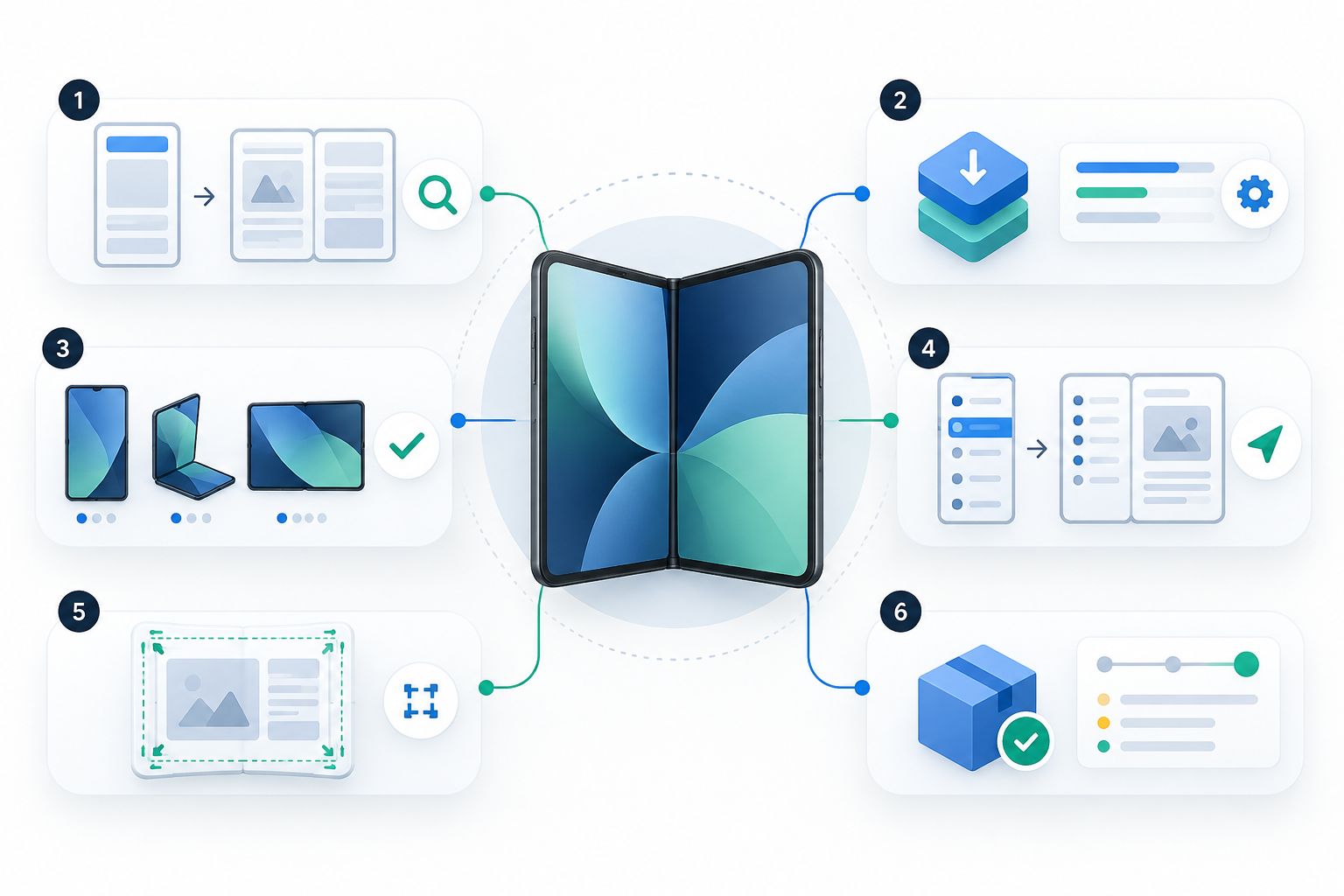
iPhone Duo readiness checklist
| Area | What changes | Action |
|---|---|---|
| SDK and tooling | Screen behavior depends on SDK support | Build with Xcode 27.1 and iOS 27.1 SDK |
| Testing | Hardware may not be available to every team | Use Device Hub for display, fold and Split View checks |
| Layout signal | Orientation is not a reliable layout proxy | Use size classes and scene geometry |
| Screen access | UIScreen.main can be ambiguous |
Read screen context from the active window scene |
| Navigation | Standard containers can adapt | Prefer system navigation and verify sidebar behavior |
| Safe areas | Insets may be asymmetric | Handle each side independently |
| Custom UI | Edge controls need dynamic space | Use reserved-region APIs where appropriate |
| QA evidence | Screenshots alone are incomplete | Record completed journeys and state transitions |
How businesses should plan an iPhone Duo migration
The right migration plan depends on the app’s complexity. A content app with standard SwiftUI navigation may need a short QA and polish pass. A legacy UIKit enterprise app with custom navigation, embedded web views and document workflows may need a structured sprint.
Use this sequence.
Start with a scoped audit
Pick five to ten priority journeys. Include revenue, retention, support and operational workflows. Then inspect each one for fixed layout assumptions, custom navigation, unsafe controls, state loss and third-party dependencies.
Separate compatibility from enhancement
Compatibility means customers can complete the task without broken layout, missing controls or lost state. Enhancement means the app uses the larger display to make the task better.
Ship compatibility first. Plan Duo-native enhancements only where they clearly improve the product.
Build testing into the release process
Device Hub testing should be part of the normal release checklist, not a one-time prelaunch event. Each major screen or flow change should include compact, expanded and Split View checks.
Train the team on the new assumptions
The migration is partly technical and partly cultural. Designers, engineers and QA need the same language: size class, scene, safe area, reserved region, Split View, state preservation and posture transition.
Keep cross-platform strategy coherent
If your company ships on Android foldables too, avoid two unrelated layout strategies. Native platform APIs differ, but the product logic should be consistent: what content matters, what collapses, what persists and what becomes secondary.
What to consider before migrating
Legacy layout debt
Older apps often contain years of fixed dimensions, orientation checks, custom containers and implicit screen assumptions. These may not fail on a standard iPhone, but Duo can expose them quickly.
Testing without hardware
Simulator testing is essential, but do not treat it as the whole story forever. As soon as hardware or reliable remote-device testing is available, validate priority journeys again.
Third-party SDK behavior
Authentication, payments, chat, analytics, camera, mapping and web-view SDKs may bring their own layout assumptions. Include them in the audit instead of assuming app-owned code is the only risk.
State preservation
Many Duo defects are not visual. A form that looks correct can still lose input when the app changes display state. Test data entry, unsaved work, uploads, checkout and long-running sessions.
Frequently asked questions
Does an existing iPhone app run on iPhone Duo?
Yes, existing apps can run, but they may use compatibility behavior or show layout issues. The app still needs testing and may need updates to use the inner display well.
Do we need to rebuild the whole iOS app?
Usually no. Start with a targeted migration: SDK update, layout audit, priority journey testing and fixes for fixed geometry, navigation, safe areas and state preservation.
What is the most important iPhone Duo development change?
The most important change is moving from device-shape assumptions to adaptive scene-based layout. Size classes, scene geometry and safe areas should drive the interface.
How do we test iPhone Duo without buying the device?
Use Xcode 27.1 and Device Hub to simulate the Duo displays and poses. Record evidence for each priority journey, then validate again on physical hardware when available.
Should iPhone Duo support be part of App Store messaging?
If the support is meaningful, yes. Update screenshots, release notes and App Store copy. Do not overclaim; only show workflows that are actually tested.
Build the adaptive release
The question is not whether every app needs a flashy foldable redesign. The question is whether your customers can use the app confidently when iPhone no longer means one fixed rectangle.
Comms helps teams turn that question into a practical migration plan: audit the current app, identify fixed assumptions, design adaptive fixes, test priority journeys and ship a release that feels ready on day one.
Start with a focused Comms app readiness discussion if your iOS app depends on high-value customers, complex workflows or mobile revenue.