
Designing for iPhone Duo means keeping a task understandable as the space around it changes. A customer should be able to open a record, enter information and continue working without having to learn a second version of your app.
This Comms guide pairs a concise reading of Apple’s Designing for iPhone Duo guidelines with practical product-design exercises. The examples and AI-generated illustrations are original concepts, not Apple screenshots or exact hardware specifications.
What does Apple recommend for iPhone Duo app design?
Apple’s guidance centers on resizability and continuity: use compact and regular size classes, layout margins and safe areas; preserve functionality and state between displays. Standard system components handle much of the adaptation. A larger display can expose another level of the same information hierarchy. Read Apple’s design guidance.
For a product team, the useful question is: what should become easier when more space becomes available? Start there before designing an expanded screen.
1. Give the same task a compact and expanded presentation
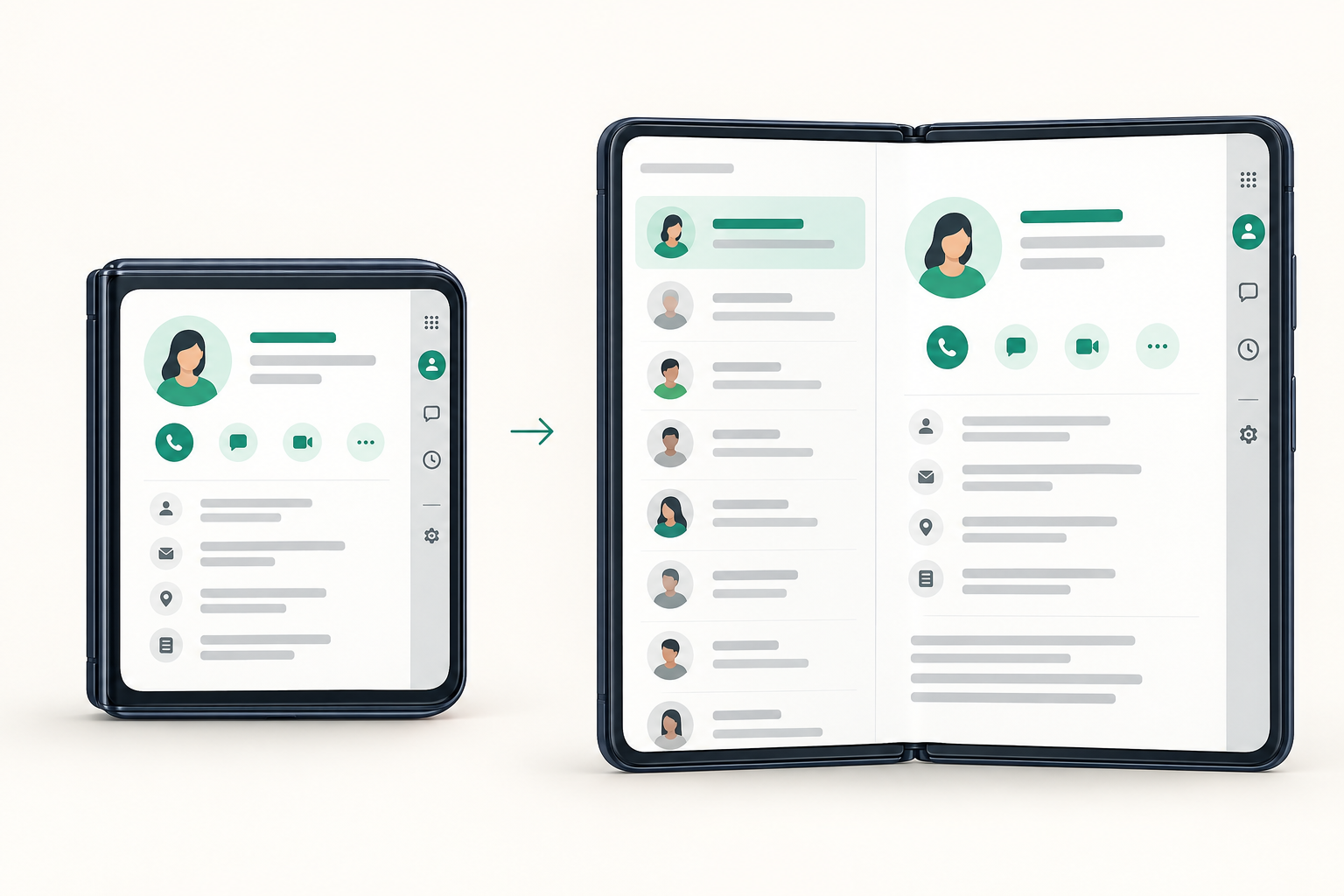
Imagine a field-service app used to review customer jobs. A technician opens an appointment, checks the address and adds a note. More space could let the technician see the appointment list beside the current job, reducing repeated trips back to the list.
That is a useful expansion because it supports the existing task. Adding a sales dashboard, team feed and map simply because they fit would create a different experience with more distractions.
A practical design exercise
Choose one frequently used record and draw its smallest useful presentation. Then add only the context that helps someone act on that record. Ask a teammate to move between records and explain what is currently selected.
Write the acceptance criteria before polishing the mockups:
- The selected appointment remains identifiable.
- An unsaved note retains its contents.
- Returning to the list does not reset a deliberate filter.
- The next action has the same meaning in both presentations.
These are proposed requirements for the example app. Your own acceptance criteria should describe the task your customers actually perform.
2. Make the fold a layout consideration
Apple describes camera and folding areas as reserved regions. System components can adapt automatically; custom components may need region-aware placement. Its guidance favors limited movement that keeps controls legible and reachable, rather than dramatic rearrangement. See Apple’s reserved-region guidance.
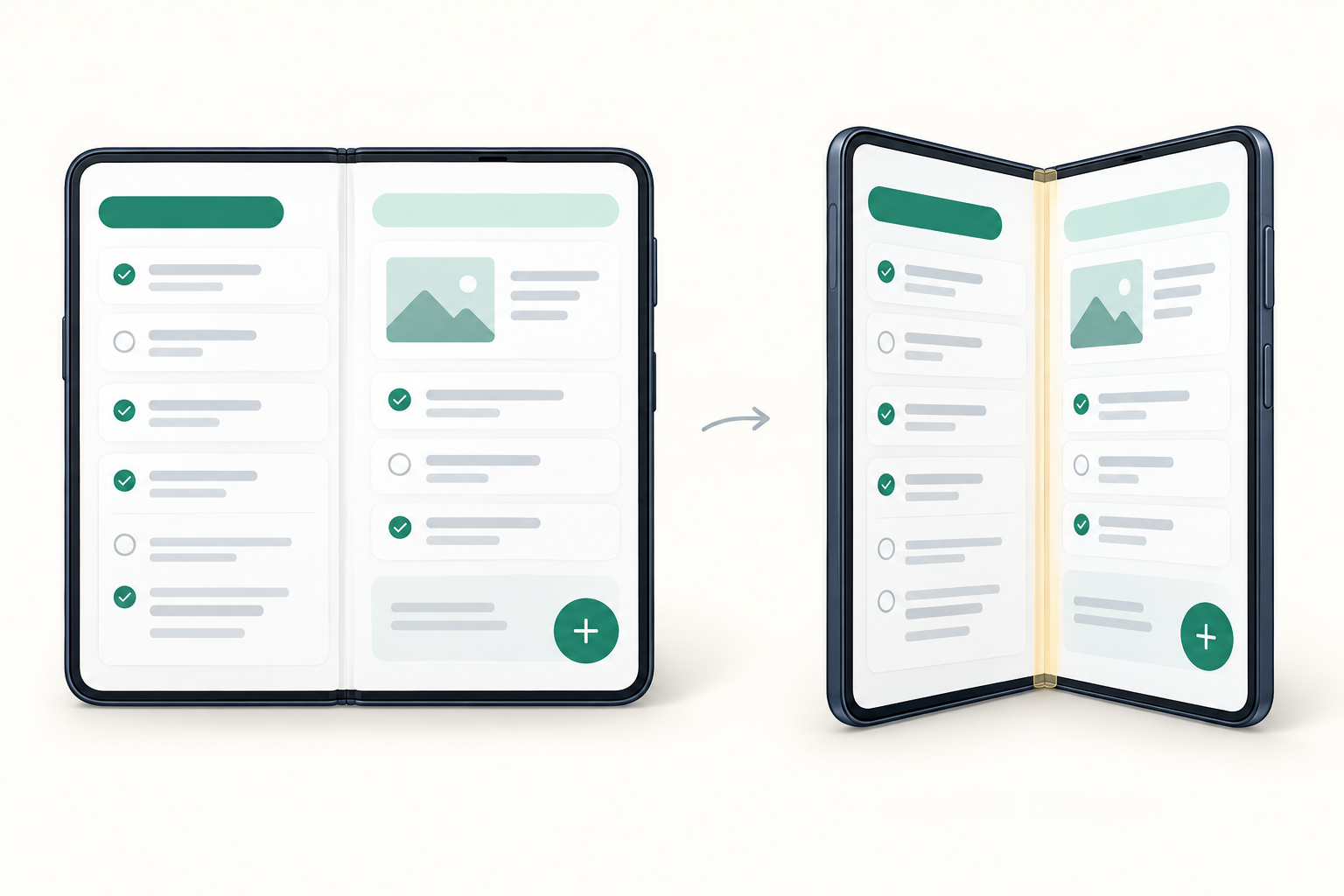
In the field-service example, consider the relationship between a note and its Save action. If the note moves to one side while Save appears detached on the other, the customer may hesitate even when both elements remain visible.
Review related elements as groups. A progress indicator and its cancel button belong together. A confirmation message should make it clear which record was saved. A visible control with an unclear target is still a usability problem.
Review the transition, not just the endpoints
Walk through the prototype slowly. Ask the reviewer to keep following one control as the layout changes. Record the moments where their attention has to search for it again.
Then repeat the task with realistic data: a long customer name, several validation messages and a keyboard covering part of the interface. Empty demo screens can make a weak layout look convincing.
Use our iPhone Duo app testing checklist to turn these observations into repeatable checks.
3. Keep navigation and content arrangement separate
Apple distinguishes split views from arrangement views. An arrangement lays out primary and secondary content using split or overlay behavior; navigation belongs outside it. See Apple’s arrangement-view guidance.
For the example app, separate three questions during design handoff:
| Design decision | Example question | Deliverable |
|---|---|---|
| Navigation | How does someone reach another appointment? | A destination map |
| Content arrangement | Which details should be visible together? | A primary and supporting content sketch |
| Task state | What survives when the presentation changes? | A continuity checklist |
This separation helps expose missing decisions. Two panels placed beside each other do not explain where Back leads, how an unsaved edit behaves or which record a toolbar action affects.
Ask the designer and engineer to annotate the same journey. Resolve disagreements on the sketch before they become competing implementations.
4. Plan which controls deserve the available space
Apple places controls vertically in many configurations, with horizontal bars on the inner display in portrait. Safe areas account for asymmetry. It recommends meaningful toolbar groups, item priorities, titles and symbols, and the system overflow menu. See Apple’s vertical-control guidance.
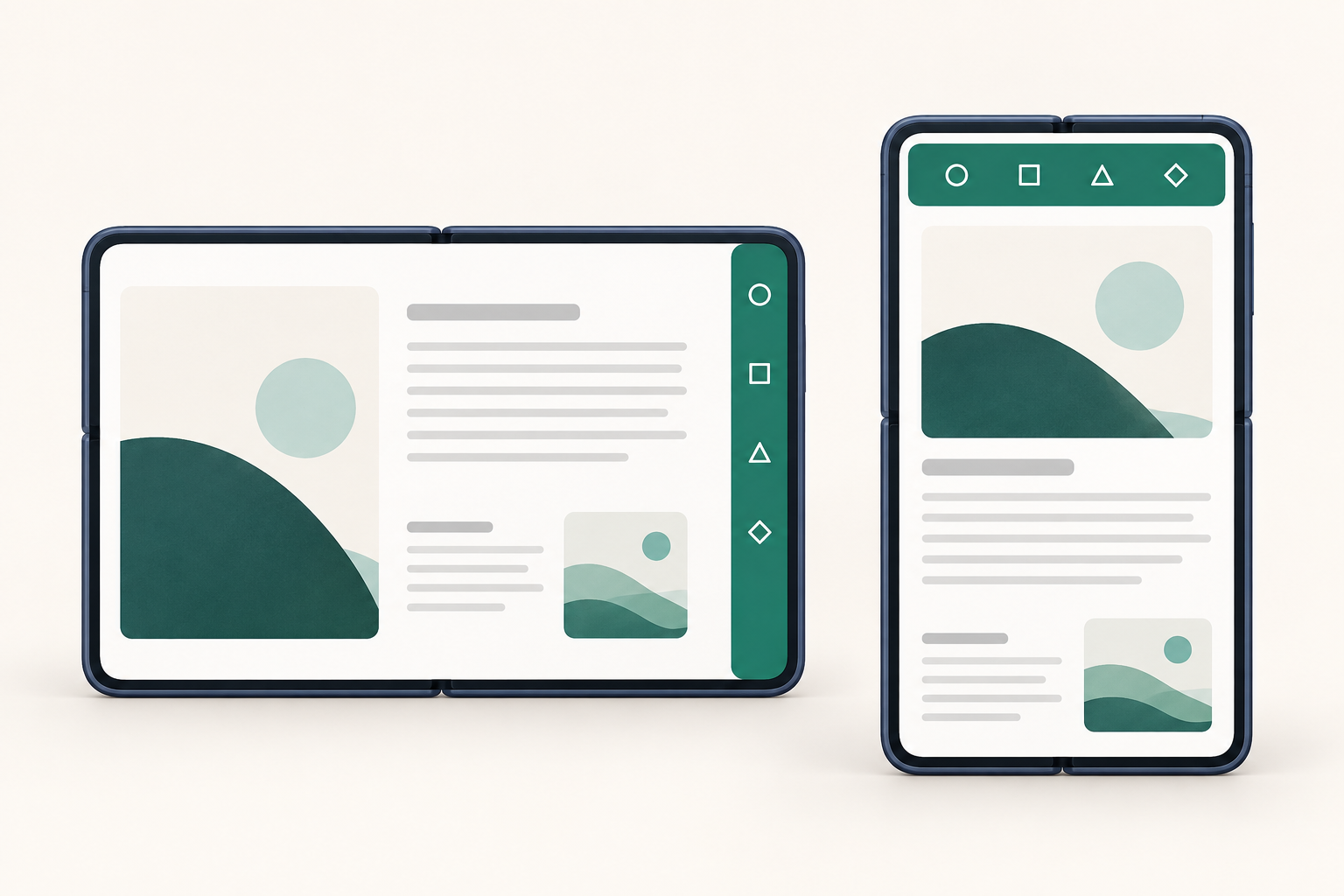
Before arguing about icon positions, inventory the actions on the screen. For an appointment editor, Save and Cancel serve the active task. Export, duplicate and view history may be useful but less urgent.
Give every action an explicit owner and purpose. Does Delete remove the appointment or just an attachment? Does Share apply to the current record or the whole list? Ambiguous scope becomes more noticeable when additional content is visible.
Test labels as well as symbols
Ask someone unfamiliar with the app to name the action represented by each icon. Then show the text labels in a menu and ask whether they describe the same outcome.
Use concrete verbs where possible. “Save note” is easier to evaluate than “Done” when the screen contains several independently editable sections. The best label depends on the actual action, so test it in context.
5. Turn the design into a reviewable implementation brief
A useful brief combines layouts, task rules and evidence. It should let someone assess whether the implementation works without relying on the person who designed it to explain every screen.
Include:
- A priority journey with realistic sample data.
- Compact and expanded examples of that journey.
- A list of information that must persist.
- Action priorities and the content each action affects.
- Loading, empty, error and unsaved-work states.
- Accessibility checks for labels, reading order and larger text.
- A recorded walkthrough of the finished implementation.
Keep optional improvements separate from required behavior. A richer comparison workspace can follow once the original task works reliably. Our iPhone Duo readiness plan explains how to organize those release decisions.
Frequently asked questions
How do we know whether a second panel is useful?
Compare the same task with and without it. Look for reduced navigation, clearer decisions and fewer context switches. More visible content is valuable only when someone can use it.
What is the most useful prototype review?
Ask someone to begin a task, change the presentation and finish it. Watch for lost selection, unclear action targets and interrupted edits. Record the outcome as well as the visual behavior.
Are these illustrations official Apple interface examples?
No. They are AI-generated Comms concepts used to explain design decisions. Refer to Apple’s linked guidelines and current development tools for platform-specific behavior.
Where should a team begin?
Pick one important journey and document its current behavior. A concrete example gives design, engineering and QA a shared basis for agreeing on changes. To discuss your product, tell Comms about your app.